
Skip to content
Atlas

ATLAS MINI / START HERE

Your boat.
Now connected.

A clear path from opening the box to seeing your boat in Fisho.

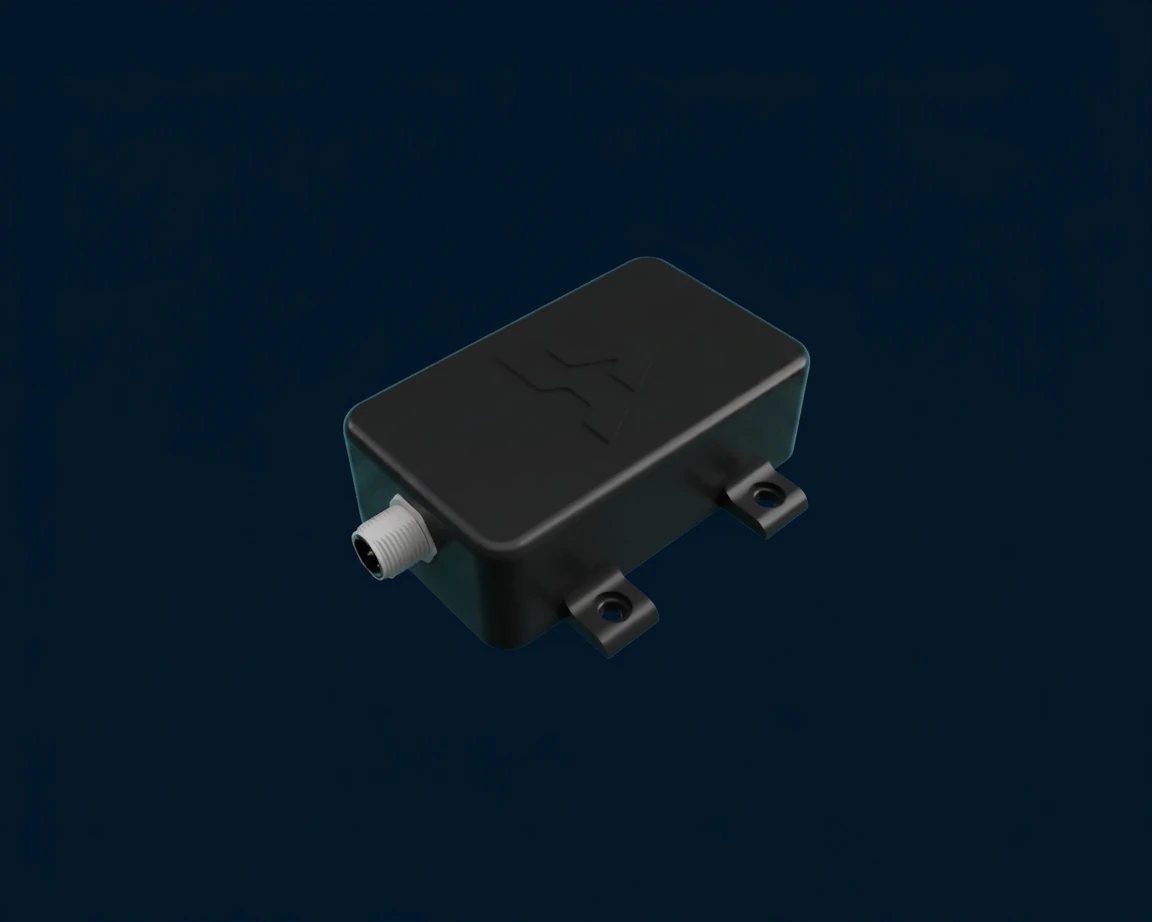
Atlas Mini enclosed gateway with its network connectorATLAS MINI · BY FISHO

BEFORE YOU START

A few things ready.

  • Your Atlas Mini correctly installed on a powered NMEA 2000 network.
  • The current Fisho app, signed in with internet for registration.
  • Bluetooth enabled and your phone close to Atlas Mini.
  • Your 2.4 GHz network details, if you plan to use Wi-Fi.

YOUR FIRST CONNECTION

Follow the app. Take it step by step.

01

Open Fisho

Install or update Fisho and sign in while your phone has internet. Open Boat. If you have not connected an Atlas Mini, choose Already have one? Set it up, then Start setup. An existing owner may see Connect your Atlas Mini or Continue setup instead.

You are in the Atlas Mini setup flow for your own account.

02

Power your Atlas Mini

Have Atlas Mini installed on your boat’s NMEA 2000 network using the instructions for your hardware. Power the network; Atlas Mini starts automatically. In Fisho, tap Find my Mini. Your phone needs internet to register the device.

The app starts looking for nearby Minis.

03

Find and pair

Keep your phone close to Atlas Mini, turn on Bluetooth and allow Fisho’s requested permissions. Select your Atlas Mini in the app, not in the phone’s Bluetooth device list. Wait for the connection to complete, then continue. Resolve an ownership or saved-key error before going further.

Fisho confirms the selected Atlas Mini is connected.

04

Name your boat

On Your boat, confirm the boat shown or enter its name. Enter the owner name and tap Continue. These details help you recognise the right boat and device later.

The correct boat is associated with this setup.

05

Choose a connection

If Save access key appears, follow it. Keep your phone online until Fisho saves the key. Choose On-board Wi-Fi or Phone hotspot, enter the 2.4 GHz details and tap Connect. Use Bluetooth only is optional when offered. After setup, add home and boat networks in Boat Wi-Fi; home Wi-Fi works only while Atlas Mini is within range. If Already online appears, continue or choose Use a different network.

The app confirms the selected route. Bluetooth-only setup does not need Wi-Fi confirmation.

06

Check your boat data

When setup finishes, keep the backup Wi-Fi password somewhere private if one is shown. Tap Done, then check the Boat tab for the actual connection and fresh readings from powered instruments.

Your Atlas Mini is connected and the readings you expect are fresh. A missing reading is not zero.

THE RIGHT CONNECTION

Nearby or away from the boat.

On-board Wi-Fi

Choose a 2.4 GHz network available at the boat. Nearby access needs the phone to reach Atlas Mini; remote features also need a working internet route.

Phone hotspot

Use 2.4 GHz. On iPhone, turn on Allow Others to Join and Maximise Compatibility if available. Keep the hotspot screen open while Atlas Mini joins. When that phone leaves, Atlas Mini loses that internet route.

Bluetooth only

Choose this only when offered by Fisho. It supports nearby use on compatible units. It does not provide remote internet access; some tools require Wi-Fi.

BOAT INSTRUMENTSNMEA 2000ATLAS MINIBluetooth / local Wi-FiFISHOYour phone

Connection diagram only. It does not specify wiring, power, network termination or installation clearances.

A LITTLE HELP

If something stops you.

Start with the message on your screen. Your connection and your instrument readings are separate checks.

Atlas Mini is not appearing

Check its network power, move closer and allow Bluetooth for Fisho. On Android, allow the nearby-device permissions requested. Retry inside Fisho. Do not pair through the phone’s Bluetooth device list.

Detailed steps →
The network will not connect

Check the exact name and password and use 2.4 GHz. For an iPhone hotspot, turn on Allow Others to Join and Maximise Compatibility if shown. Keep that screen open until Atlas Mini joins. A guest network can block local access even when it has internet.

Detailed steps →
Connected, but a reading is missing

Turn on the relevant instrument and compare its own display. Check the source and freshness in NMEA Hub where available. Atlas Mini can only show the information it receives. Do not reset Atlas Mini to troubleshoot one missing reading.

Detailed steps →
It asks for an access key or another owner

Use the Fisho account that owns the Atlas Mini and follow the recovery message. A saved access key and the backup Wi-Fi password are different. Do not share either in chat. Contact Fisho if ownership cannot be resolved.

Detailed steps →

KEEP THIS CLOSE

Your guide, on board.

Next, add home and boat Wi-Fi, set up supported switches, and create your first automation. Save the manual before heading out. In supported app versions, Help & diagnostics also includes the guide for offline reading. Ask Fisho chat about your Atlas Mini when you have internet.

FishoATLAS MINI · GUIDE 2026-10-31-r3
Features and screens depend on app, hardware and firmware version.